
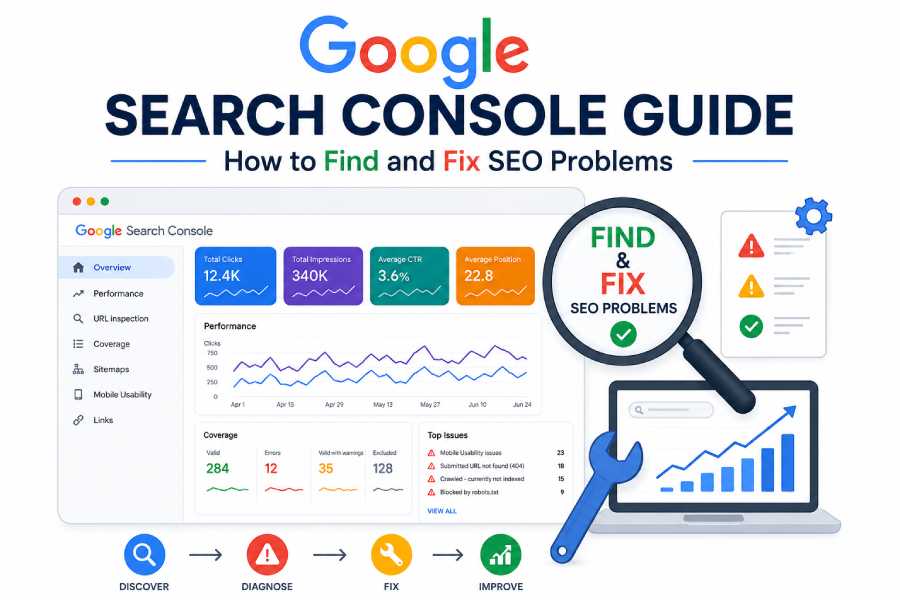
For bloggers, businesses, and digital marketers, Google Search Console works like an SEO health monitoring system. It helps discover problems before they affect rankings and provides actionable data to improve website visibility.
In this complete Google Search Console guide, Lots Diary Team explains how to use this tool to find SEO problems, understand reports, fix technical issues, and improve your website performance in Google Search.
Table of Contents
- What Is Google Search Console?
- Why Google Search Console Matters for Website Rankings
- How to Set Up Google Search Console
- Understanding Google Search Console Reports
- Finding SEO Problems Using Google Search Console
- Fixing Google Indexing Problems
- Using URL Inspection Tool to Diagnose SEO Problems
- How to Fix Sitemap Problems in Google Search Console
- Robots.txt Problems That Affect SEO Rankings
- Canonical Tags: Fixing Duplicate Content Problems
- Fixing Mobile Usability Issues in Google Search Console
- Core Web Vitals: Improving Website Experience and Rankings
- Finding Security Issues in Google Search Console
- Advanced Google Search Console SEO Troubleshooting Checklist
- How to Use Google Search Console Data for Content Optimization
- Internal Linking Strategy for Better SEO Rankings
- Common Google Search Console Mistakes to Avoid
- Google Search Console SEO Maintenance Schedule
- Frequently Asked Questions
What Is Google Search Console?
Google Search Console (GSC) is a free platform provided by Google that allows website owners to monitor and optimize their presence in Google Search results.
The tool collects information directly from Google and shows how search engines interact with your website. Unlike third-party SEO tools that estimate rankings, Google Search Console provides official search performance data.
What Can You Do With Google Search Console?
- Monitor website search traffic and rankings
- Find keywords bringing visitors to your website
- Check which pages are indexed by Google
- Identify crawling and indexing problems
- Submit new pages for indexing
- Fix mobile usability issues
- Monitor Core Web Vitals
- Detect security problems
- Analyze search appearance improvements
Why Google Search Console Matters for Website Rankings
Many SEO problems are invisible without proper monitoring. A website may appear normal to visitors but have technical problems affecting Google crawling and ranking.
Google Search Console helps answer important SEO questions:
- Why did my website traffic decrease?
- Why are my pages not appearing on Google?
- Which keywords are generating impressions?
- Are important pages indexed correctly?
- Does my website have technical errors?
- Are users experiencing mobile usability problems?
Regularly checking Search Console reports allows website owners to make data-driven SEO decisions instead of guessing what changes are needed.
How to Set Up Google Search Console
Before finding SEO problems, you need to connect your website with Google Search Console.
Step 1: Create a Google Search Console Account
Visit Google Search Console and sign in using your Google account. Add your website as a property to begin monitoring search performance.
Step 2: Choose Property Type
Google Search Console provides two verification options:
Domain Property
Domain property tracks your complete website including all URL versions:
- https://example.com
- http://example.com
- www.example.com
- Subdomains
This option requires DNS verification and is recommended for complete SEO tracking.
URL Prefix Property
URL prefix tracks only one specific website version. Verification methods include:
- HTML file upload
- HTML meta tag
- Google Analytics verification
- Google Tag Manager verification
Understanding Google Search Console Reports
After verification, Google Search Console provides multiple reports that help analyze website health and SEO performance.
1. Performance Report
The Performance report shows how users discover your website through Google Search.
Important Performance Metrics
- Total Clicks: Number of times users clicked your website from search results.
- Total Impressions: Number of times your pages appeared in Google Search.
- Average CTR: Percentage of impressions that generated clicks.
- Average Position: Average ranking position of your website pages.
How to Use Performance Data for SEO Growth
Performance data helps identify opportunities for improving rankings.
- Pages with high impressions but low CTR need better title tags and meta descriptions.
- Pages ranking between positions 5 and 20 can often improve with content optimization.
- Pages losing clicks may require updates, better internal links, or improved search intent matching.
Finding SEO Problems Using Google Search Console
Google Search Console includes several reports designed to detect website problems that can affect search visibility.
Common SEO Problems You Can Find
- Indexing errors
- Crawling problems
- Duplicate content issues
- Canonical tag mistakes
- Mobile usability errors
- Core Web Vitals problems
- Broken pages and server errors
Fixing Google Indexing Problems
Indexing is the process where Google stores information about web pages and makes them available in search results.
If Google does not index your pages, they cannot rank for keywords or generate organic traffic.
Common Indexing Issues in Google Search Console
- Crawled – Currently Not Indexed
- Discovered – Currently Not Indexed
- Blocked by robots.txt
- Duplicate page without canonical
- Server errors
- Incorrect redirects
How to Check Indexing Issues
Go to: Google Search Console ? Pages ? Indexing Report
The report shows indexed pages, excluded pages, and errors preventing Google from accessing your content.
Using URL Inspection Tool to Diagnose SEO Problems
The URL Inspection Tool in Google Search Console is one of the most useful features for identifying why a specific page is not ranking or appearing in search results.
It provides detailed information about how Google crawls, indexes, and understands individual URLs on your website.
What Can You Check With URL Inspection Tool?
- Whether a page is indexed in Google Search
- The last crawl date
- Mobile usability status
- Canonical URL selected by Google
- Structured data issues
- Crawling and indexing problems
How to Inspect a URL in Google Search Console
- Open Google Search Console dashboard
- Copy the webpage URL you want to analyze
- Paste it into the URL Inspection search bar
- Review indexing and enhancement reports
- Fix detected problems and request indexing
Common URL Inspection Errors and Solutions
| Error | Meaning | SEO Solution |
|---|---|---|
| URL is not indexed | Google has not added the page to search results | Improve content quality, add internal links, and request indexing |
| Blocked by robots.txt | Google crawler cannot access the page | Review robots.txt rules and allow important pages |
| Duplicate without user-selected canonical | Google found similar pages | Add correct canonical tags |
How to Fix Sitemap Problems in Google Search Console
An XML sitemap helps Google discover important pages on your website. A properly configured sitemap improves crawling efficiency and helps search engines understand your website structure.
Where to Check Sitemap Status?
Go to: Google Search Console ? Sitemaps
This report shows submitted sitemaps, discovered URLs, and possible errors.
Common Sitemap Errors
- Sitemap could not be read
- Invalid XML format
- Submitted URL blocked by robots.txt
- Too many unnecessary URLs
- Incorrect sitemap location
How to Create an SEO-Friendly Sitemap
- Include only important indexable pages
- Remove deleted or redirected URLs
- Update sitemap automatically when publishing new content
- Use proper XML formatting
- Submit sitemap inside Google Search Console
For WordPress websites, SEO plugins can automatically generate and update XML sitemaps.
Robots.txt Problems That Affect SEO Rankings
The robots.txt file controls which parts of your website search engines can crawl. Incorrect robots.txt settings can accidentally block important pages from Google.
Common Robots.txt Mistakes
- Blocking important website pages
- Disallowing CSS or JavaScript files
- Blocking entire websites during development
- Incorrect syntax rules
Example of a Problematic Robots.txt File
User-agent: *
Disallow: /
This command blocks all search engines from crawling the entire website.
Better Robots.txt Configuration Example
User-agent: *
Allow: /

Sitemap: https://lotsdiary.com/sitemap.xml
How to Test Robots.txt Issues
- Review robots.txt report in Google Search Console
- Check blocked URLs
- Confirm important pages are crawlable
- Update incorrect directives
Fixing Mobile Usability Issues in Google Search Console
Google uses mobile-first indexing, meaning it primarily evaluates the mobile version of your website for ranking and indexing.
A poor mobile experience can negatively impact user engagement and search visibility.
Common Mobile Usability Errors
- Text too small to read
- Clickable elements too close together
- Content wider than screen
- Viewport not configured correctly
How to Improve Mobile SEO
- Use responsive website design
- Optimize images for mobile devices
- Improve page loading speed
- Use readable font sizes
- Avoid intrusive popups
Core Web Vitals: Improving Website Experience and Rankings
Core Web Vitals are Google performance measurements that evaluate user experience, including loading speed, visual stability, and interaction performance.
Important Core Web Vitals Metrics
| Metric | Measures |
|---|---|
| Largest Contentful Paint (LCP) | Page loading performance |
| Interaction to Next Paint (INP) | Website responsiveness |
| Cumulative Layout Shift (CLS) | Visual stability |
Ways to Improve Core Web Vitals
- Compress large images
- Use modern image formats like WebP
- Reduce unnecessary JavaScript
- Improve hosting performance
- Use browser caching
- Remove unused plugins
Finding Security Issues in Google Search Console
Security problems can remove pages from Google Search results and damage website trust.
Security Issues Report Shows:
- Malware warnings
- Hacked content
- Phishing problems
- Unsafe website behavior
How to Fix Security Problems
- Update website software
- Remove malicious files
- Change passwords
- Install security monitoring tools
- Request Google review after fixing issues
Advanced Google Search Console SEO Troubleshooting Checklist
Regular SEO monitoring helps identify problems before they affect website traffic and rankings. The following checklist can help website owners maintain better search performance using Google Search Console.
1. Check Index Coverage Regularly
The Indexing report should be reviewed frequently to ensure Google can access and index important pages.
- Check excluded pages
- Review indexing errors
- Fix pages blocked by robots.txt
- Resolve duplicate content issues
- Submit important updated pages for indexing
2. Monitor Search Performance Changes
The Performance report provides valuable insights into keyword rankings, clicks, impressions, and CTR changes.
Look for:
- Sudden traffic drops
- Pages losing impressions
- Keywords moving down in rankings
- Pages with high impressions but low clicks
How to Improve Low CTR Pages
- Create better SEO titles
- Write attractive meta descriptions
- Match content with search intent
- Add structured data where relevant
- Improve search result appearance
How to Use Google Search Console Data for Content Optimization
Google Search Console is not only a technical SEO tool. It also helps improve content strategy by showing what users search for and how they interact with your pages.
Find New Keyword Opportunities
The Queries section shows keywords where your website already receives impressions.
For example:
- A page ranking on page two may need additional optimization.
- A keyword with many impressions may need a dedicated article.
- Related search terms can help expand existing content.
Improve Existing Content With Search Console Insights
- Update outdated information
- Add missing sections based on user queries
- Improve headings and content structure
- Add internal links to important pages
- Answer frequently searched questions
Internal Linking Strategy for Better SEO Rankings
Internal links help Google understand website structure and distribute authority between pages.
A strong internal linking strategy improves crawling, user experience, and keyword ranking opportunities.
Best Internal Linking Practices
- Link from high-authority pages to important articles
- Use descriptive anchor text
- Connect related topics together
- Avoid excessive irrelevant links
- Create topic clusters
Example Internal Linking Structure for LotsDiary.com
- SEO Category ? Google Search Console Guide
- Digital Marketing Category ? SEO Strategy Articles
- Business Category ? Online Growth Guides
Common Google Search Console Mistakes to Avoid
Many website owners use Google Search Console but fail to take proper action based on the data.
Mistake 1: Ignoring Indexing Reports
If important pages are not indexed, they cannot generate organic traffic. Regular indexing checks are necessary.
Mistake 2: Submitting Every URL for Indexing
Google does not need every website URL indexed. Focus on valuable, unique, and search-friendly pages.
Mistake 3: Ignoring Mobile Performance
Since Google uses mobile-first indexing, poor mobile experience can reduce search visibility.
Mistake 4: Not Fixing Technical Errors
Broken pages, slow loading speed, and incorrect redirects can negatively affect rankings.
Google Search Console SEO Maintenance Schedule
| Frequency | SEO Tasks |
|---|---|
| Daily | Monitor major traffic drops and security alerts |
| Weekly | Review indexing issues, keywords, and ranking changes |
| Monthly | Analyze Core Web Vitals, content performance, and technical SEO problems |
| Quarterly | Perform complete SEO audit and update old content |
Frequently Asked Questions (FAQ) About Google Search Console
What is Google Search Console used for?
Google Search Console is used to monitor website performance in Google Search, identify SEO problems, check indexing status, analyze keywords, and improve organic visibility.
How can Google Search Console help improve rankings?
Google Search Console provides data about keywords, clicks, impressions, indexing problems, and technical errors. Using this information helps website owners optimize pages and improve search performance.
Why are my website pages not indexed by Google?
Pages may not be indexed because of poor content quality, duplicate content, incorrect canonical tags, crawling restrictions, server problems, or weak internal linking.
How often should I check Google Search Console?
Most websites should check Google Search Console weekly. Larger websites may need daily monitoring for indexing, security, and traffic changes.
Does Google Search Console improve SEO automatically?
No. Google Search Console does not directly improve rankings. It provides data and reports that help website owners identify problems and make SEO improvements.
Conclusion: Use Google Search Console to Build a Healthier Website
Google Search Console is one of the most important SEO tools for improving website visibility in Google Search. It provides accurate information about indexing, rankings, technical issues, and user experience problems.
By regularly monitoring reports, fixing errors, improving content, optimizing Core Web Vitals, and maintaining proper technical SEO, website owners can create a stronger foundation for long-term organic growth.
For LotsDiary.com readers, understanding Google Search Console is an essential step toward building a search-friendly website that performs better in competitive search results.